VS Code Extension: iPlay Protocol Link Recognition
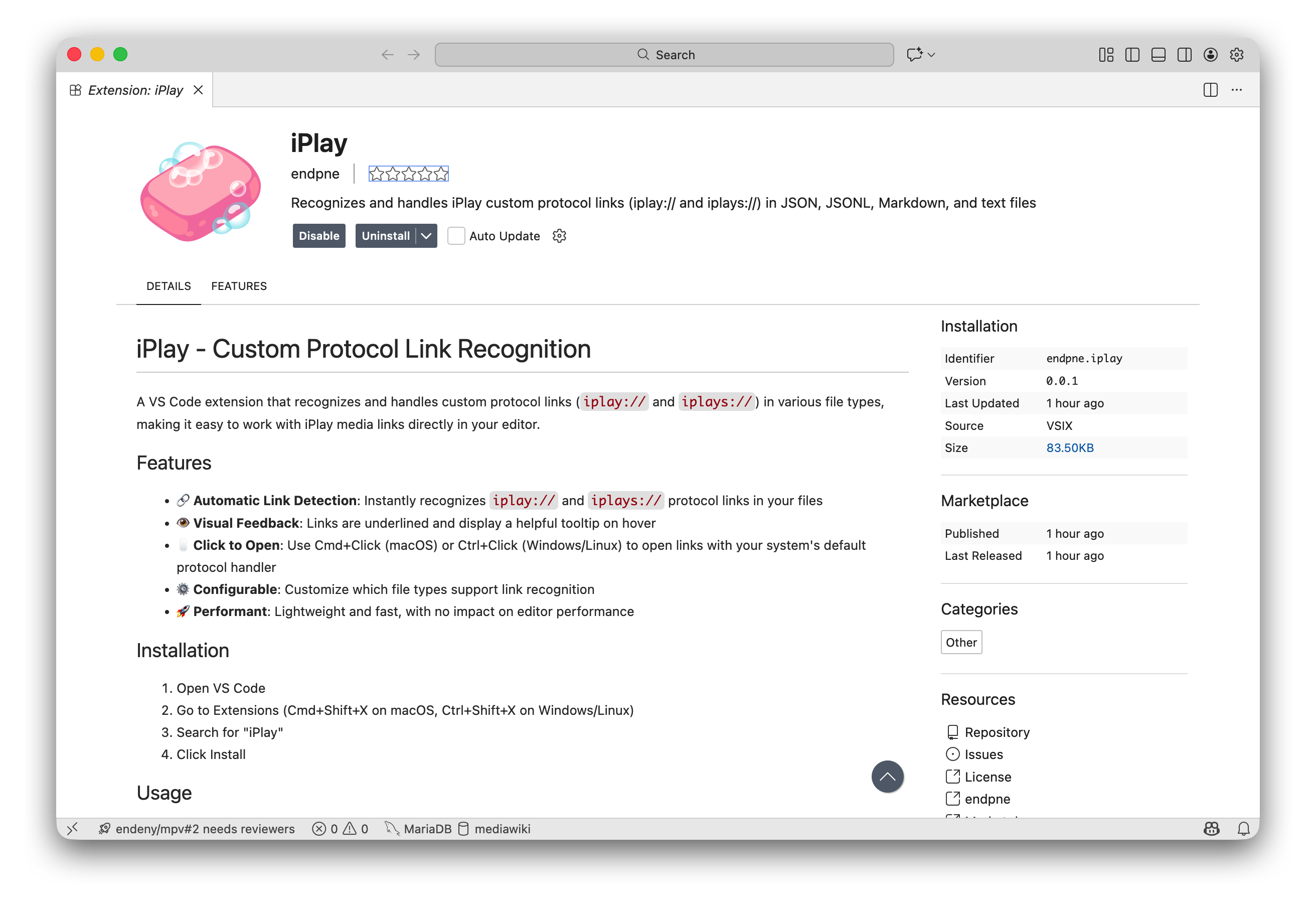
A VS Code extension that automatically recognizes and handles custom protocol links (iplay:// and iplays://) in your files, making it easy to work with iPlay media links directly in your editor.
🎯 Key Features
- 🔗 Automatic Link Detection: Instantly recognizes
iplay://andiplays://protocol links in your files - 👁️ Visual Feedback: Links are underlined and display helpful information on hover
- 🖱️ Click to Open: Use Cmd+Click (macOS) or Ctrl+Click (Windows/Linux) to open links with your system's default protocol handler
- ⚙️ Configurable: Customize which file types support link recognition
- 🚀 Performant: Lightweight and fast, with no impact on editor performance
📦 Installation
- Open VS Code
- Go to Extensions (Cmd+Shift+X on macOS, Ctrl+Shift+X on Windows/Linux)
- Search for "iPlay"
- Click Install
📝 Supported File Types
By default, the extension works with:
- JSON (
.json) - Perfect for configuration files and data - JSONL (
.jsonl) - Line-delimited JSON files - Markdown (
.md) - Documentation and notes - Plain Text (
.txt) - Any text file
💡 Usage Examples
Simple Links
iplay://example.com/video
iplays://secure.example.com/media
Links in Context
Check out this video: iplay://example.com/awesome-video

"Watch this: iplay://example.com/tutorial"

(See iplay://example.com/demo for details)
Links with Query Parameters
iplay://example.com/video?id=123&quality=hd
iplays://example.com/playlist?name=favorites&autoplay=true
In JSON Files
{
  "videos": [
    "iplay://example.com/intro",
    "iplay://example.com/tutorial",
    "iplays://secure.example.com/premium"
  ],
  "playlist": "iplay://example.com/playlist/daily"
}
Multiple Links
Compare iplay://example.com/video1 with iplay://example.com/video2⚙️ Configuration
Customize File Types
You can customize which file types support custom protocol link recognition by adding this to your settings.json:
{
  "iplay.fileExtensions": [
    "json",
    "jsonl",
    "markdown",
    "plaintext",
    "javascript",
    "typescript",
    "python"
  ]
}
Common Language Identifiers
javascript- JavaScript filestypescript- TypeScript filespython- Python filesyaml- YAML filesxml- XML fileshtml- HTML filescss- CSS files
Note: Configuration changes take effect immediately without requiring a restart.
🔧 Troubleshooting
Links are not being detected
Problem: Custom protocol links don't appear as clickable links in your file.
Solutions:
Check the file type: Ensure the file type is in your configured list of supported extensions
- Open Command Palette (Cmd+Shift+P / Ctrl+Shift+P)
- Type "Change Language Mode" to see the current language identifier
- Add this identifier to
iplay.fileExtensionsin settings
Verify the link format: Make sure your links start with
iplay://oriplays://- ✅ Correct:
iplay://example.com/video - ❌ Incorrect:
iplay:/example.com/video(missing one slash) - ❌ Incorrect:
iPlay://example.com/video(wrong case)
- ✅ Correct:
Check for delimiters: Links are detected until they hit whitespace or common delimiters
- Delimiters that end link detection: space,
",',<,>,),},] - If your link contains these characters, they may be excluded
- Delimiters that end link detection: space,
Reload the window: Try reloading VS Code
- Open Command Palette (Cmd+Shift+P / Ctrl+Shift+P)
- Type "Developer: Reload Window"
Links don't open when clicked
Problem: Clicking on a link doesn't open it.
Solutions:
Use the correct modifier key:
- macOS: Hold Cmd while clicking
- Windows/Linux: Hold Ctrl while clicking
Check system protocol handler: Ensure your system has a handler registered for the
iplay://protocol- The extension passes the link to your operating system
- You need an application installed that handles
iplay://URLs
Try a different link: Test with a simple link like
iplay://example.com/testto rule out URL-specific issues
Configuration changes don't take effect
Problem: After changing settings, the extension still uses old configuration.
Solutions:
- Wait a moment: Configuration changes should apply automatically within a few seconds
- Check settings syntax: Ensure your
settings.jsonhas valid JSON syntax - Reload the window: As a last resort, reload VS Code
- Open Command Palette (Cmd+Shift+P / Ctrl+Shift+P)
- Type "Developer: Reload Window"
Extension is not active
Problem: The extension doesn't seem to be running.
Solutions:
Check extension is installed and enabled:
- Go to Extensions view (Cmd+Shift+X / Ctrl+Shift+X)
- Search for "iPlay"
- Ensure it's installed and enabled
Open a supported file type: The extension activates when you open a supported file
- Try opening a
.json,.md, or.txtfile
- Try opening a
Check the Output panel:
- Open Output panel (Cmd+Shift+U / Ctrl+Shift+U)
- Select "Custom Protocol Link Recognition" from the dropdown
- Look for activation messages or errors
Performance issues
Problem: VS Code feels slow after installing the extension.
Solutions:
- Reduce supported file types: If you've added many file types, try reducing the list to only those you need
- Check for conflicts: Disable other extensions temporarily to see if there's a conflict
- Report the issue: If performance problems persist, please report them on the GitHub repository
🔒 Privacy & Security
- No data collection: This extension does not collect or transmit any data
- Local processing: All link detection happens locally in your editor
- No network requests: The extension doesn't make any network calls
- System integration: Links are opened using your system's default protocol handler
📖 Technical Details
How It Works
The extension uses VS Code's DocumentLinkProvider API to:
- Scan document text for custom protocol links using regex pattern matching
- Create interactive
DocumentLinkobjects with command URIs - Register a command that uses
vscode.env.openExternal()to open links with the system's default protocol handler - Provide hover tooltips and handle click events
- Automatically update when documents or configuration changes
This approach ensures that custom protocol links are opened by the system (triggering the iPlay application) rather than being handled internally by VS Code.
Link Detection Pattern
The extension uses the following regex pattern to detect links:
/i(?:play|plays):\/\/[^\s"'<>)}\]]+/gThis pattern matches:
iplay://oriplays://protocol- Followed by any characters except whitespace and common delimiters
- Stops at: space,
",',<,>,),},]
🤝 Development
This extension is built with TypeScript and uses VS Code's DocumentLinkProvider API.
Building from Source
# Clone the repository
git clone <repository-url>
cd custom-protocol-link-recognition

# Install dependencies
npm install

# Compile TypeScript
npm run compile

# Run tests
npm test
Project Structure
├── src/
│   ├── extension.ts          # Main extension logic and link provider
│   ├── configuration.ts      # Configuration management
│   └── test/                 # Test suite
├── package.json              # Extension manifest
└── README.md                 # This file
🤝 Contributing
Contributions are welcome! Please feel free to submit issues or pull requests.
📄 License
See the LICENSE file in the repository for details.
💬 Support
If you encounter any issues or have questions:
- Check the Troubleshooting section above
- Search existing issues on GitHub
- Create a new issue with details about your problem
Enjoy using iPlay links in VS Code! 🎉